Choose where synced emails appear
By default, Slap adds the content of each synced email to the comment section of the Notion page. You can also choose to add it directly to the page body instead, as a collapsible toggle. You control this from the “How emails appear in Notion” setting in your Owner Dashboard.
The two modes
In page comments (default)
Each synced email is added to the comment section of the related Notion page. Replies you send by adding a comment go out as emails, and new emails in the thread come back as new comments. This is the original Slap behavior.
For the content to show up, make sure the comment section is displayed in your Notion database.
In the page body
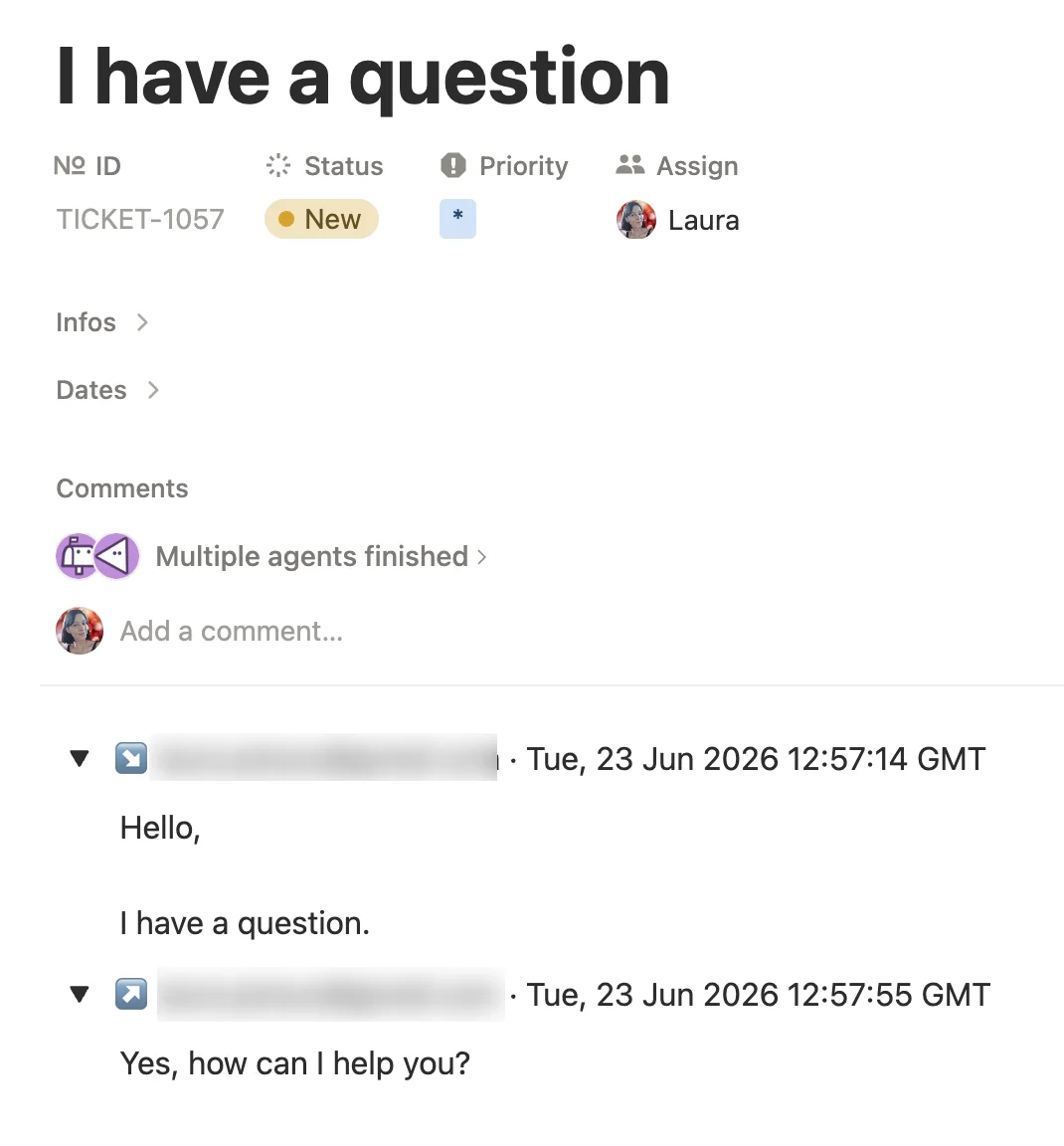
Each synced email is added directly to the page body, as a collapsible toggle that contains the full email. The toggles are labelled by direction:
- Inbound emails show ↘ [sender] · [date].
- Outbound emails show ↗ [recipients] · [date].
This mode keeps much more of the original email: inline images, attachments all render inside the toggle, so a thread reads more like it does in your mailbox.
A few things to know:
- When you reply by leaving a Notion comment, the sent email is also reflected in the page body as an outbound toggle.
How to change the setting
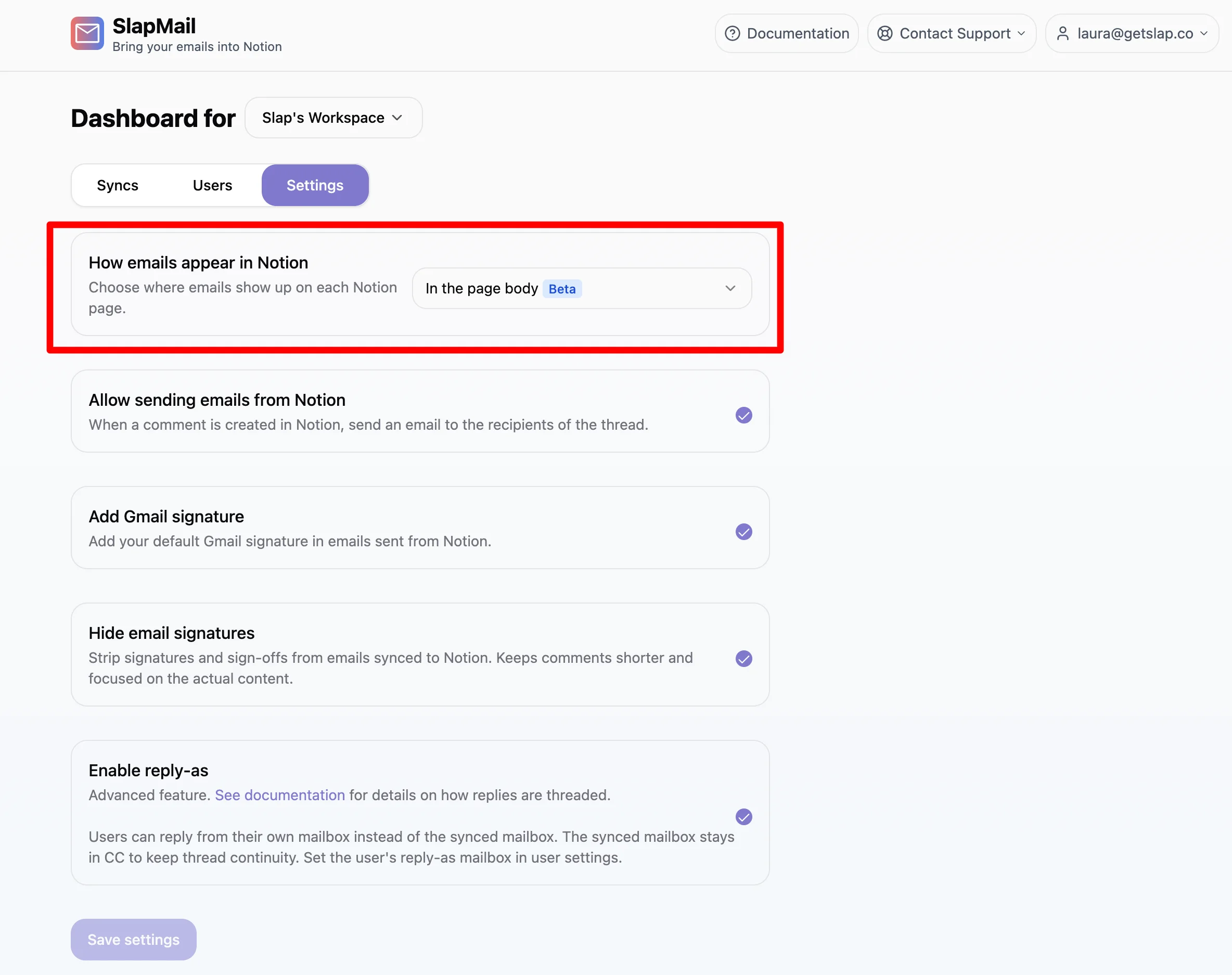
- Open your Settings.
- Find the “How emails appear in Notion” setting.
- Choose In page comments or In the page body.
The setting applies to emails synced from that point on.
Which mode should you choose?
- Choose In page comments to keep the familiar setup and a lighter page body.
- Choose In the page body for a richer reading experience, with inline images and attachments, and a comment section kept free for internal notes.