Attachments
Attachments in synced emails
When an email containing attachments (images, videos, PDFs, etc.) gets synced in Notion, those attachments are stored in your Notion workspace.
Attachments in comments
If your emails appear in the comment section (the default), Slap creates a comment on the related Notion page for every synced email, and the attachments in the email are linked to that comment.
Notes:
- The Notion API only supports up to 3 attachments per comment. If the synced email contains more than 3 attachments, Slap creates multiple comments so all attachments are added.
- Notion only supports some file types. You can find the complete list of supported file types here. Attachments with an unsupported file type are not uploaded to Notion.
- Free Notion workspaces only accept attachments up to 5 MB. If the attachment is larger, it will not be uploaded.
Attachments in the page body
If you’ve set emails to appear in the page body (see how emails appear in Notion), attachments render directly inside the email’s toggle block: inline images display within the email, and other files appear as attachments you can open from the page.
The same Notion limits on file types and sizes apply.
Attachments in a Files & media property
Additionally, you can also store attachments in a Files & media property on the Notion page itself.
To do this:
- In your Notion database, add a property with the type Files & media (for example, call it
Attachments). - In your Email-to-Notion sync settings in Slap, map email attachments to this Files & media property.
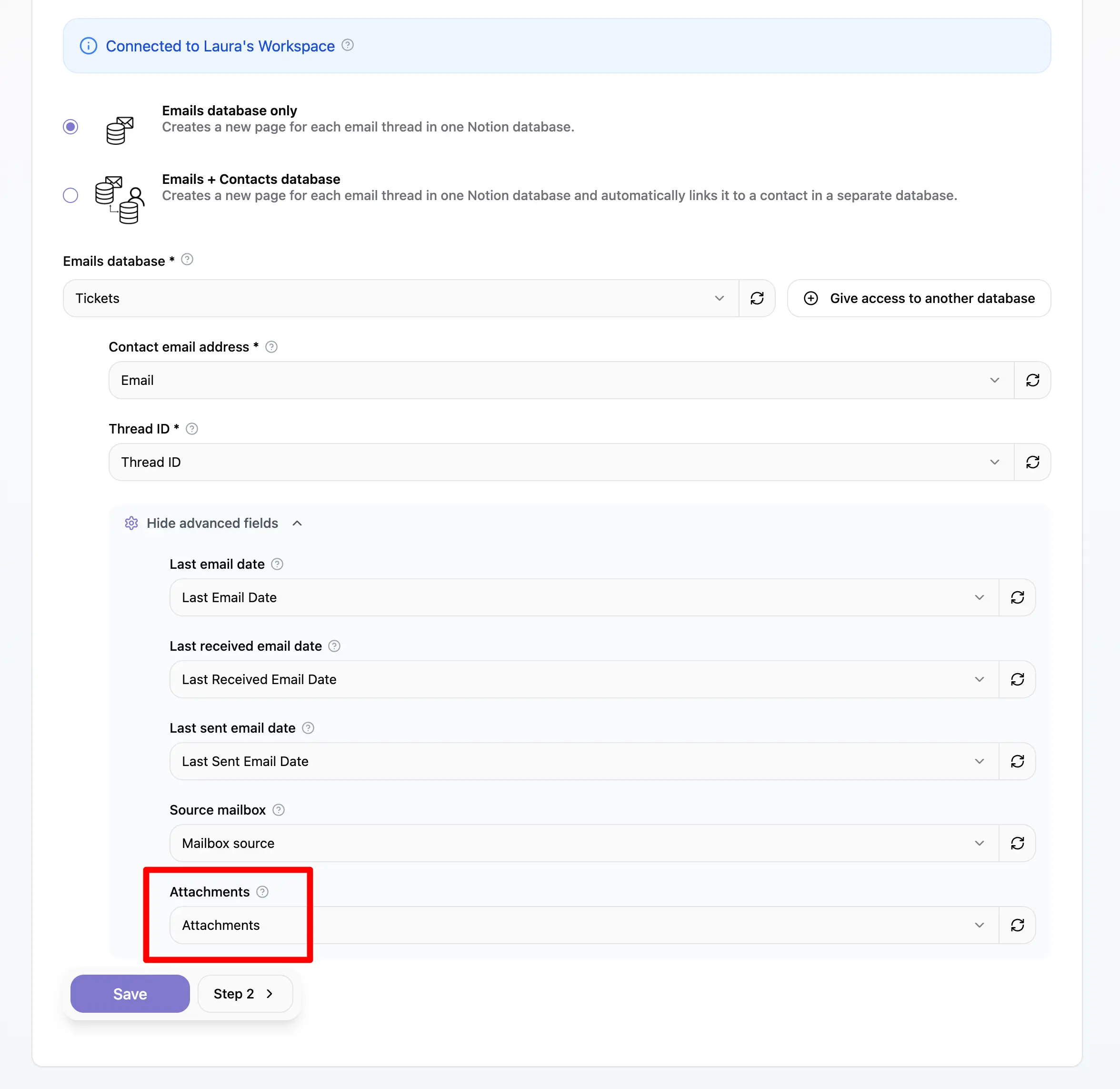
Once this is configured:
- Attachments from synced emails appear in the comment or page body (depending on your How emails appear in Notion setting)
- The same attachments are also stored in the Files & media property on the page
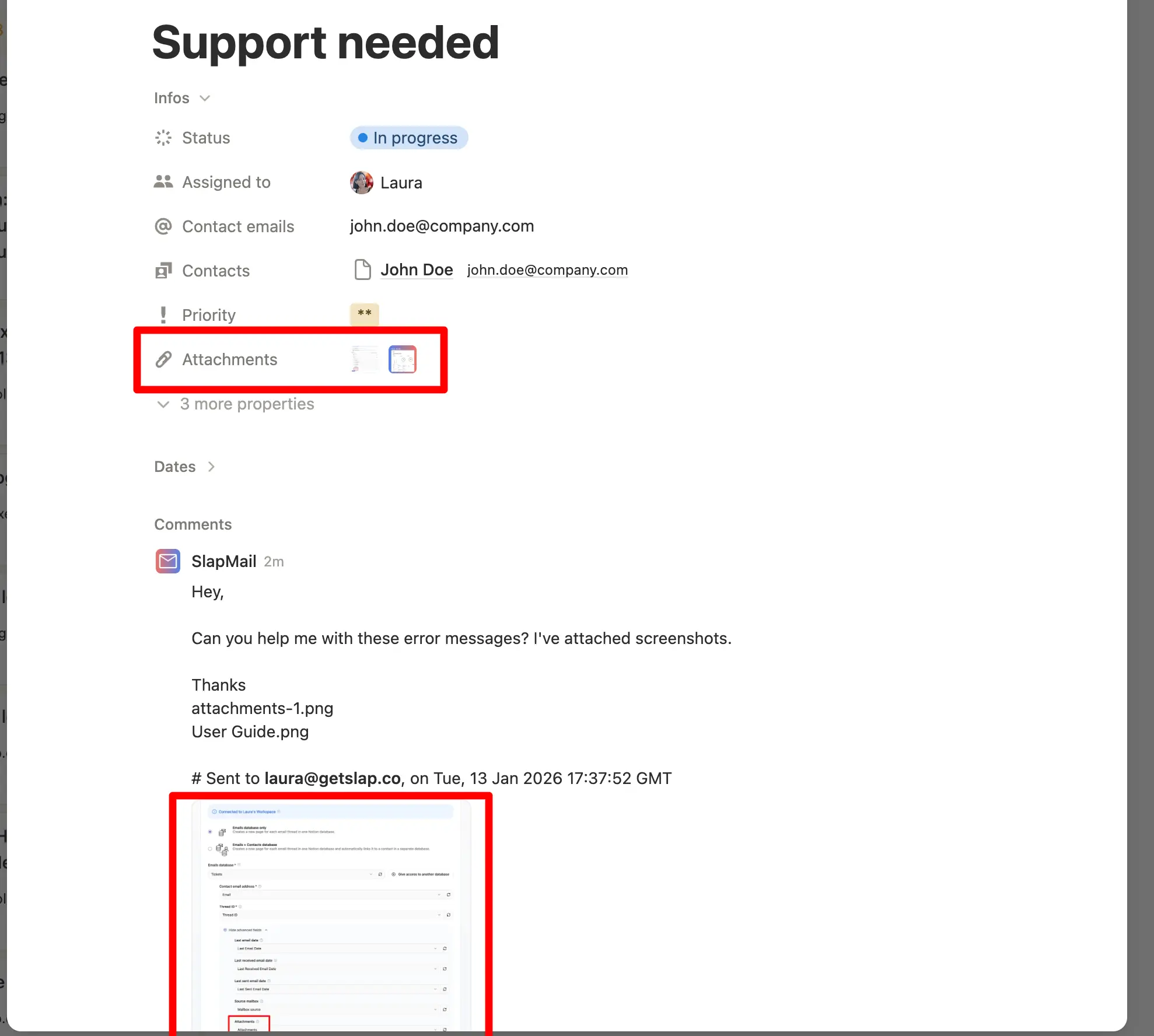
This makes it easier to see all files attached to a thread directly from the database view.
Sending attachments from Notion
You can send attachments when starting or replying to an email from Notion. Add the files directly to the Notion comment you use to compose the email, then send the comment as usual. SlapMail includes the attached files in the outgoing email.
This works with Gmail and Outlook, for new conversations and replies. You can attach multiple files to the same email.
Attachment size limit
The combined size of all attachments must be 15 MB or less. If the total exceeds 15 MB, the SlapMail bot mentions you in Notion to let you know that some attachments could not be sent.