Authentication
This page covers how portal users sign in, how to let new users sign up, and how to expose tabs to anonymous visitors.
Sign in
Admin URL vs portal URL
There are two different entry points:
- Admin URL -
portal.getslap.co. This is where you, as an admin, manage your portal. - Portal URL -
your-subdomain.portal.getslap.co. This is where your clients log in.
Always share the portal URL with your users. The admin URL is not meant for them and will create an admin account if they sign up there.
How portal users sign in
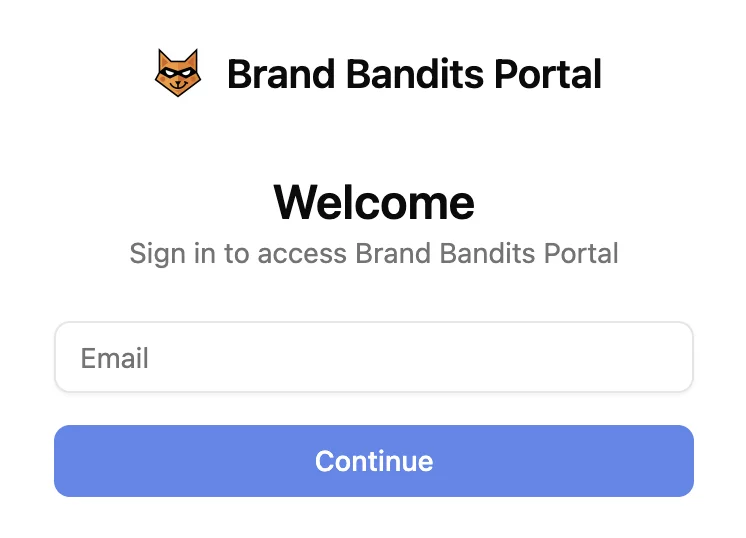
Portal users sign in from your portal URL (e.g. mycompany.portal.getslap.co). They enter their email and receive a one-time code to log in. There is no separate sign-up page - the same flow handles both returning users and new sign-ups.
Only users listed in Admin > Users can sign in (see the Users doc). If you have enabled Allow signups, anyone can also create an account themselves (see Sign up below).
SlapPortal does not email this link to your users, so make sure to share your portal URL with them so they can sign in.
Sign up
To let new users create an account themselves, enable Allow signups in General settings.
- Allow signups ON - anyone can join the portal by entering their email on the login page.
- Allow signups OFF - only pre-approved users can log in.
When a Notion users database is connected, new sign-ups are automatically pushed to Notion. See the Users doc for details on Notion sync modes.
Public tabs
You can make any tab public so anonymous visitors can view its content without signing in. Configure this from Admin > Tabs > [your tab] > Public tab. See the Public tab doc for more details.
When enabled:
- Anonymous visitors can browse the records in the tab. What they actually see (visible properties, page content, comments) depends on the tab’s settings.
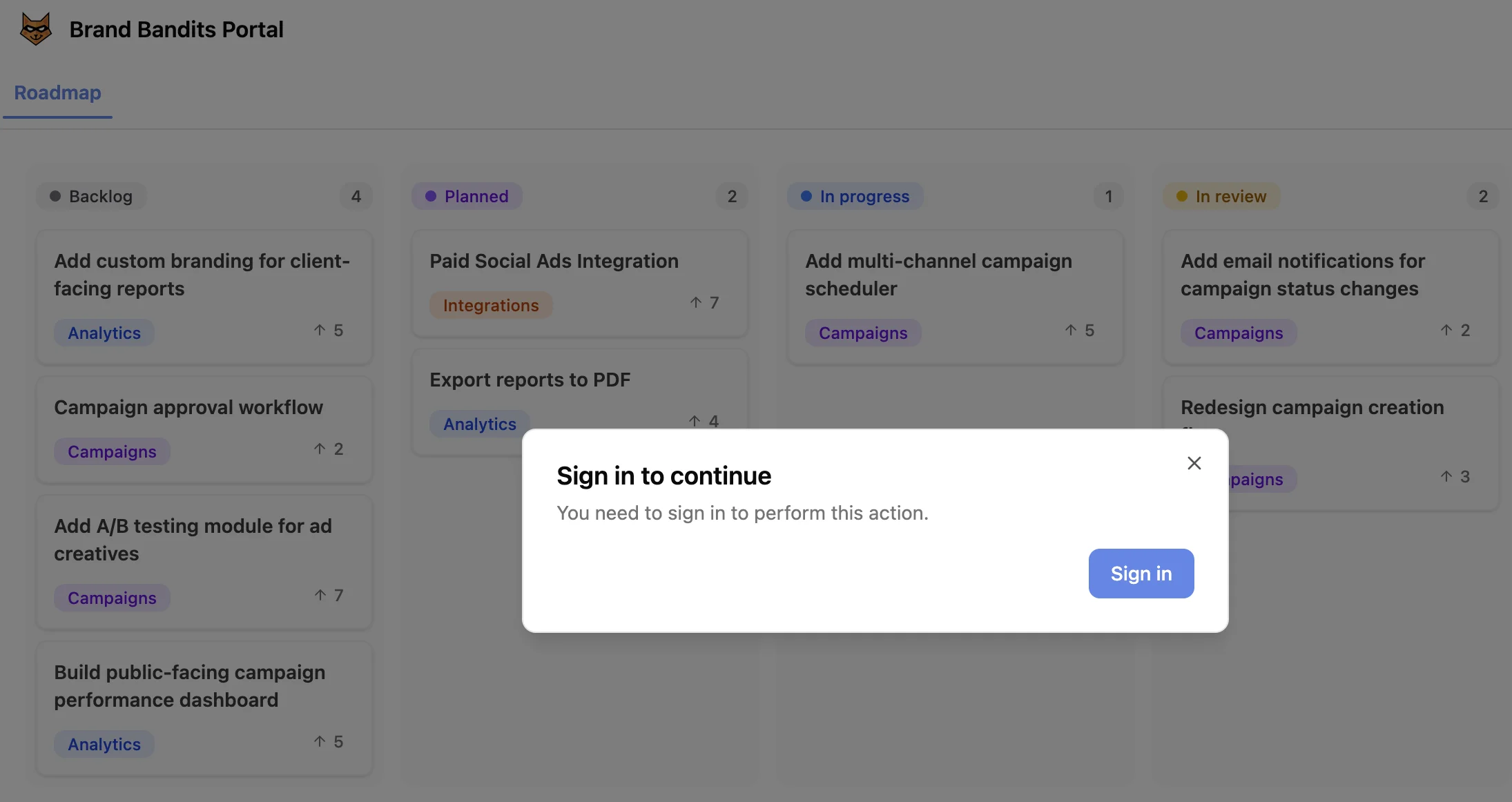
- Any write action (commenting, upvoting, creating a record) triggers a Sign in to continue modal that prompts them to authenticate first.
- Access rules still apply: visitors only see records that match the tab’s rules.
Typical use cases
Combine Allow signups and Public tab settings to shape your portal’s access model:
- Strictly private - public tabs off, signups off. Default mode for client portals.
- Public board with private actions - public tabs on, signups on. Good for public roadmaps where visitors can browse and authenticate to upvote.
- Curated community - public tabs on, signups off. Visitors can see the content, but only pre-approved users can sign in to interact.