You have one Notion workspace. Inside it: databases for tasks and documents, 10 team members, 5 external freelancers, and 50 clients with access to specific pages.
Each group should see only what concerns them and be able to do only what they are allowed to do. Team members edit their own tasks. Freelancers see their assignments but not internal notes. Clients access their project pages, nothing else.
Setting up the right permissions is probably the hardest part of running a Notion workspace at scale. The promise of Notion page-level access - also known as granular permissions - is to make this easier. Shipped with Notion 3.0 on Business and Enterprise plans, it lets you set access rules per row in a database based on Person properties.
This post covers everything we have picked up working with clients, leads, and fellow Notion users: what the feature does well, where it breaks down, and when you need to look beyond native Notion.
TL;DR - Notion page-level access (also called granular permissions) lets you control who can view, comment on, or edit individual pages inside a database, based on Person or Created by properties. It is available on Business and Enterprise plans only. It works well for patterns like “view all, edit your own”, department-scoped documents, and simple client or freelancer dashboards. It does not support field-level permissions, rules based on Status or Tags, or cascading across related databases - for those, you need automations (Make, Zapier) or an external portal layer.
What is Notion page-level access?
What are Notion page-level access rules?
Page-level access rules (what most people call granular permissions) let you control who can view, comment on, or edit individual pages inside a database. You create rules on the source database. Each rule targets a Person or Created by property and assigns a permission level - Can View, Can Comment, or Can Edit.
When a user appears in that property on a given page, they get the assigned access.
A quick example. You have a Tasks database with an Assignee property. You add a page-level access rule: Assignee → Can Edit. Now each team member can only edit the tasks assigned to them. Everyone else either sees the task as read-only or not at all, depending on the database-level permission you set.
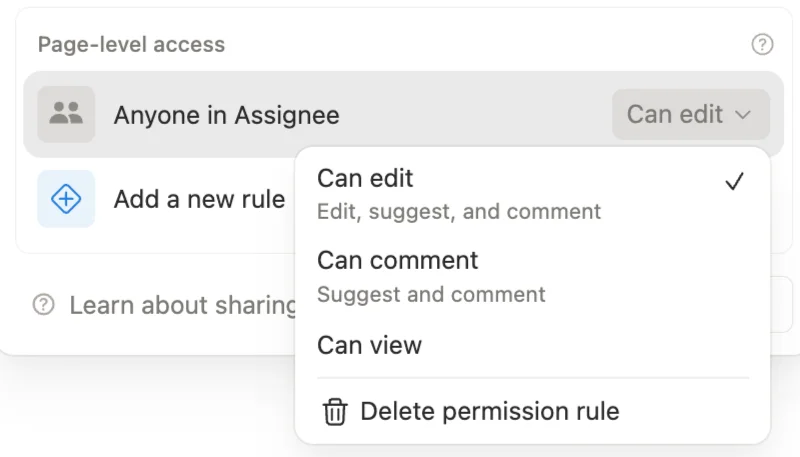
How do Notion page-level access rules work?
A few fundamentals to keep in mind:
- Business or Enterprise plan required. This is not available on Free or Plus.
- The broadest permission always wins. Rules can only increase access, never restrict it. If someone has Can Edit through a group and Can View through a page-level rule, they keep Can Edit.
- Rules apply everywhere - across all views of the database, including linked views on other pages.
- Can Create Pages. Before this option existed, locking down a database meant users could not create new entries at all - they had to use Forms, which did not work well for guests, broke templates, and limited AI features. Now you can enable Can Create Pages in the Share dialog so users can click New to add entries directly, even on a database set to No Access or Can View. Notion prompts you to pair this with a Created by → Can Edit rule so creators can edit what they made.
- Person properties grant up to Can Edit. Only Created by can grant Full Access. This is by design - if Person properties could grant Full Access, any user with Can Edit could add themselves and escalate their own permissions.
How do you set up page-level access in Notion?
Rules are set on the source database, not on linked views. This is an important distinction. If you are looking at a linked view on another page, you need to navigate to the original database first.
- Open the database as a full page.
- Click Share in the top right.
- Scroll to the Page-level access section.
- Add a rule: pick a Person or Created by property and assign a permission level (Can View, Can Comment, or Can Edit).
- Optionally enable Can Create Pages if you want users to add new entries.
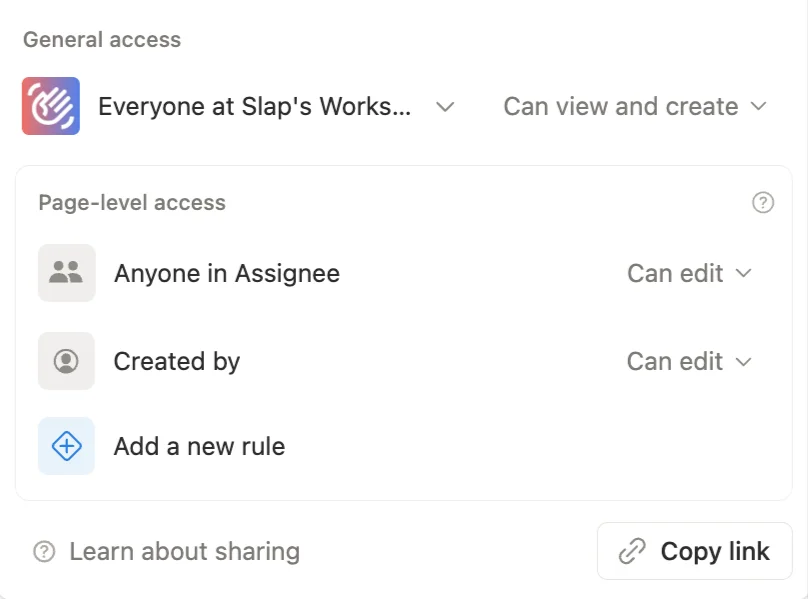
That is it. On paper, the setup takes two minutes.
In practice, the hard part is not clicking through these five steps. It is everything that surrounds them:
- What should the database default to? Can View, No Access, No Access + Can Create Pages? The right answer depends on which groups should see what, and whether those people are Notion users or guests. Guests cannot be added to a group, which changes how you manage them and often pushes the default toward No Access + Can Create Pages.
- How do you handle different audiences on the same database? Internal team members editing their own tasks, department leads editing all tasks in their scope, freelancers viewing only what they are assigned to, clients viewing only what relates to their account. Each layer may need its own rule, its own Person property, and its own way of being kept in sync.
- Who/what fills the Person properties, and how? A rule like “People → Can View” only works if People is filled correctly on every page. Will this be handled manually, via automations, templates? And how is it maintained in the long run?
- What happens when access needs to change? A freelancer leaves, a client switches account manager, a project becomes confidential. Each of these means updating a Person property on potentially dozens of pages, and propagating that change to related databases.
The next sections cover this: the constraints to know before you commit to a setup, the concrete use cases where page-level access works as advertised, where it falls short, and the alternatives when native Notion is not enough.
What are the limitations of Notion granular permissions?
Before diving into use cases, it helps to understand the hard limits of the feature:
- No advanced rule logic. Rules are strictly Person or Created by based. You cannot combine conditions like “show pages where Status is Active AND this person is assigned.” There is no way to mix status, tags, dates, or any other property type into access rules.
- No field-level permissions. When someone has access to a page, they see everything: all properties, all comments, the full page body. You cannot hide billing rates from a freelancer or internal notes from a client.
- No cascading across relations. Restricting a project does not restrict its linked meetings and documents. Each related page keeps its own permissions.
- Groups don’t work with guests. Guests cannot be added to Notion Groups. Every external user needs manual, page-by-page permission management.
- The “Me” filter does not recognize groups. If you add a group to a Person property, access works correctly. But a view filtered to “Assignee is Me” will not show pages where you are included via a group - your user account needs to be set directly.
These constraints define when page-level access is enough and when you need additional tools.
When do Notion granular permissions work well?
For certain use cases, this feature is exactly what you need. No workarounds, no automations - just native Notion.
View all, edit your own
The classic task management pattern. Set the database to Can View for the team, add a page-level rule on the Assignee property with Can Edit, and everyone sees all tasks but only edits their own.
Enable Can Create Pages so team members can add their own tasks. Pair it with a Created by → Can Edit rule. Two minutes of setup.
How do you scope documents to a department?
Create Notion Groups for each department (Engineering, HR, Finance) - you should do it anyway, it’s a good practice. Use a Person property like “Access” or “Readers” and fill it with the relevant group. When a new hire joins the Engineering group, they instantly see all engineering documents - no manual page sharing needed.
To make sure the right group lands on every new page, you have two clean options:
- Filtered views. Create one view per department, filtered on the Access property (e.g. Access contains Engineering). Any new page created from that view inherits the filter value, so the group is set automatically.
- Templates. Create one template per department with the Access property pre-filled with the right group. Users pick the template when creating a page and the group is set from the start.
This scales cleanly. Adding one person to a group retroactively grants access to every page where that group appears.

How do you build a client or freelancer dashboard in Notion?
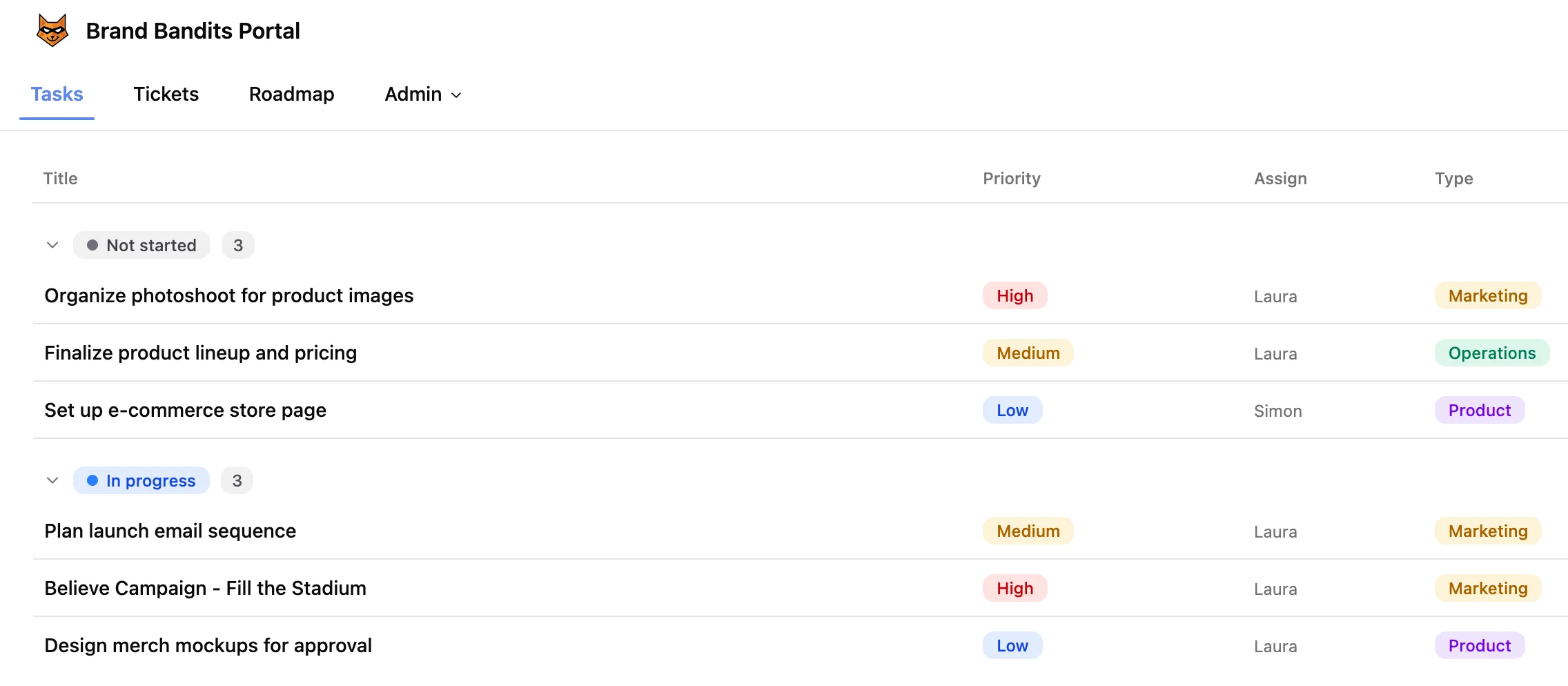
Set the database to No Access, add a page-level rule on the Client or Assignee property, and share a linked view to your client/freelancer. Each client or freelancer sees only their pages.
With Can Create Pages enabled, they can submit new entries directly. No need for external form tools or API automations.
This pattern works well as long as filling the Client or Assignee property stays manageable.
The best part: clients and freelancers can be guests, so you don’t pay for an extra seat per external user.
Where it breaks down is when access stops being one-to-one. If all the clients from the same company should see every task related to that company, you’d need either a group containing those clients (impossible with guests) or a rule that follows a relation (not supported). At that point, native page-level access is not enough and you need to look at automations or a portal layer.
When do Notion granular permissions fall short?
The patterns above cover simple, self-contained use cases. Once you move to a real workspace with interconnected databases, confidentiality layers, and external users at scale, the cracks show.
Do Notion permissions cascade across related databases?
This one is subtle but critical. Restricting a project does not restrict its linked meetings and documents.
Imagine you set a project to be visible only to 3 people. The 5 meetings and 12 documents related to that project remain visible to whoever had access before. You need to propagate the access change across every related page - manually or through automations.
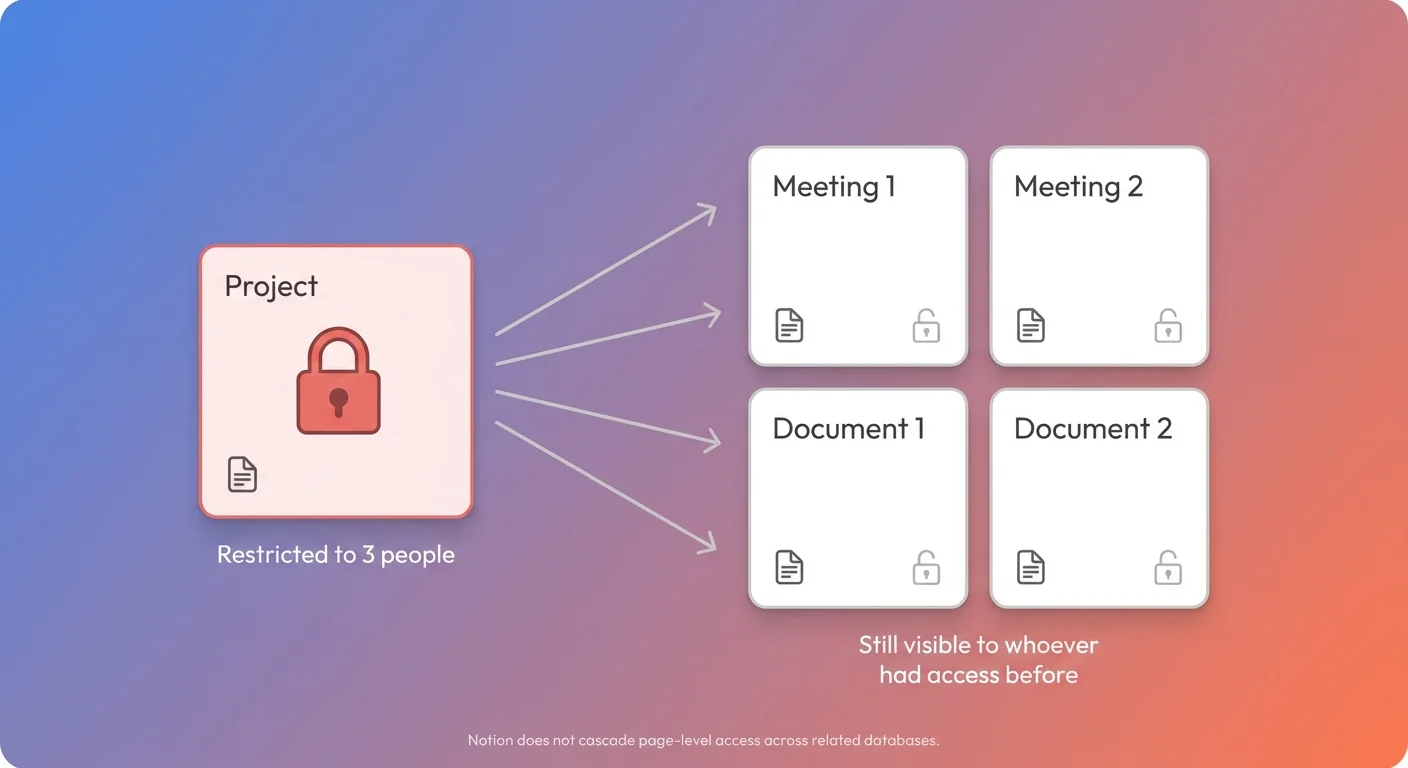
Notion automations can help for simple cases, but they have a limitation: automations cannot trigger other automations. If updating a project triggers an automation that updates meetings, and you also need meetings to update documents, you are stuck. For multi-level cascading, you need an external automation tool.
How do you manage external users at scale in Notion?
Notion Groups are powerful for managing access internally. But guests cannot be added to groups. This means every external user - freelancer, client, partner - needs manual, page-by-page permission management.
If you work with 5 external people, it is manageable. If you work with 50, it is not. You either convert guests to paid members (at $20+/month each) or accept a heavy manual overhead.
Can you hide specific properties from certain users?
When someone has access to a page, they see everything. You cannot hide billing rates from a contractor, time tracking from a client, or internal notes from a freelancer. This is the most requested gap in the feature.
The “all closed” model is hard to live with
Some teams try defaulting all databases to No Access and sharing every page explicitly through granular permissions. On paper, it is the most secure approach. In practice, it creates serious friction:
- Users lose the ability to browse and discover content naturally.
- Every new page requires explicit permission assignment - either manually or through automations.
- The governance overhead for a small IT team grows fast.
A hybrid approach almost always works better: open by default for internal content, locked down only where confidentiality actually matters.
What are the alternatives to Notion granular permissions?
When your needs go beyond what page-level access rules can handle, you have several paths. Most real-world setups end up combining two or more of these.
Automations (Make, Zapier)
The most common extension is using automation tools to propagate Person property values across related databases.
Typical scenarios:
- When a project’s team changes, propagate the new team to all linked meetings and documents.
- When a meeting or document is created with a project relation, copy the project’s team into the access property.
- Templates pre-fill the access property with the right people. A “Board Meeting” template sets access to the directors. An “HR Document” template sets access to the HR group. The page is restricted from the moment it is created.
This approach keeps everything inside Notion but adds maintenance. Automations are invisible, hard to debug, and every new relation or database means more scenarios to build.
External portal layer
Tools like SlapPortal, Softr, or NotionApps keep Notion as the source of truth while adding the access control that Notion does not yet provide natively:
- Field-level permissions - show or hide specific properties per user role.
- External user management at scale - no need to add guests to Notion or manage page-by-page sharing.
- Internal comments that stay internal - external users see only what you expose through the portal.
This is the more robust path for external-facing use cases. A portal layer adds an external dependency but handles the hard parts cleanly.
The hybrid model
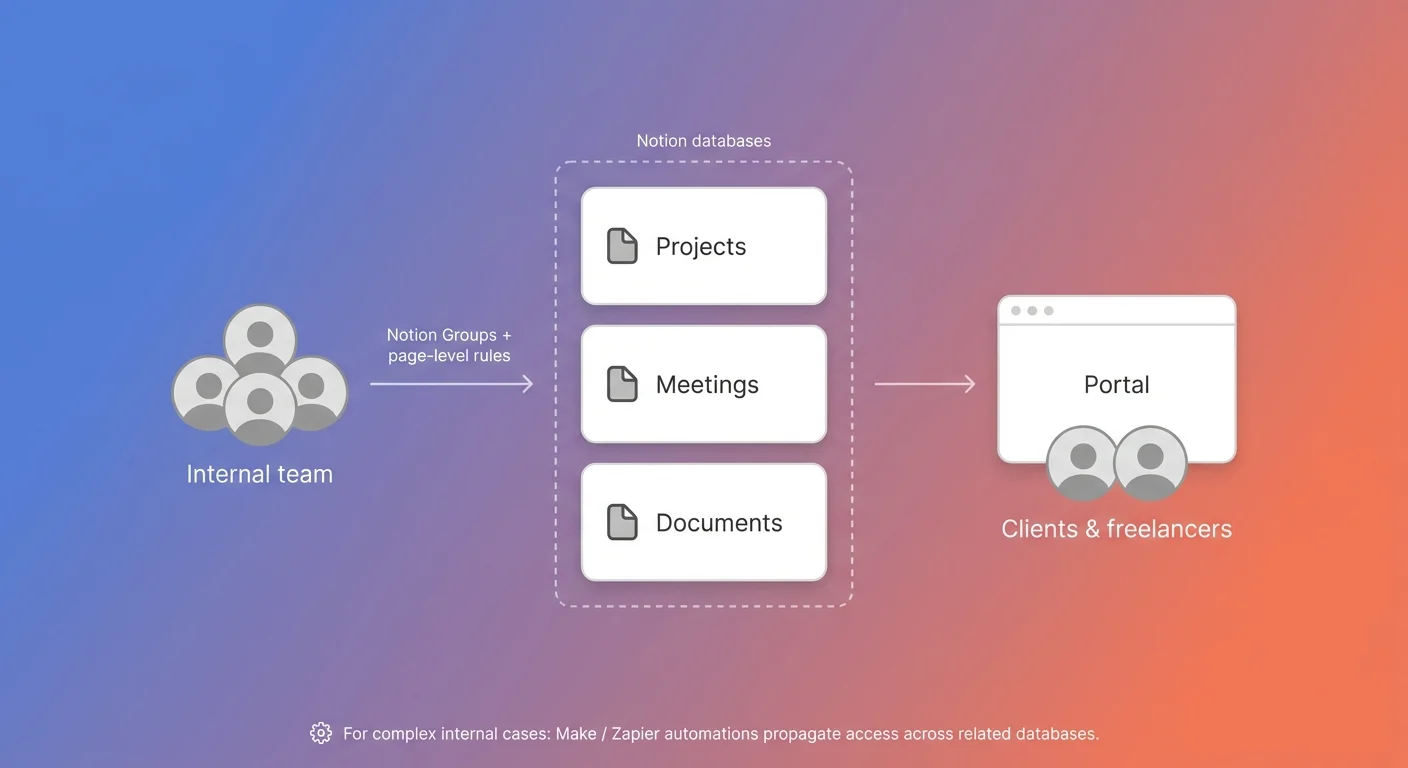
In practice, the most effective setup combines all three approaches, each handling what it does best:
- Notion page-level access for internal users. Page-level rules tied to Person properties filled with Notion Groups (Engineering, HR, Finance, leadership). One person joins or leaves a group and their access updates everywhere automatically. This is where native Notion really shines.
- Automations for the gaps between databases. Make or Zapier propagate Person property values across related databases - so changing a project’s team automatically updates the linked meetings and documents. This is what fills in for the cascading Notion does not do natively.
- A portal layer for external sharing. Clients, freelancers, and partners go through a portal like SlapPortal instead of being added to Notion as guests. You get field-level permissions, no per-seat cost per external user, and internal comments that stay internal.
Each layer has a clear job: groups handle internal scale, automations handle cross-database consistency, the portal handles external scale. None of them is doing work it is bad at.
What is still missing from Notion’s granular permissions?
Page-level access is a solid foundation, but there are clear gaps:
- Field-level permissions - the ability to hide specific properties from certain users.
- Advanced rule logic - combining multiple conditions in a single rule (Person + Status, Group + Tag).
- Relation-based or rollup-based rules - “everyone on the project team gets access to all project tasks” without automations.
- Native cascading - restricting a project automatically restricts linked content.
- Groups for guests - so external users can be managed at scale without converting them to paid members.
- Permission audit view - a clear overview of who has access to what.
Frequently asked questions
Are Notion granular permissions available on the Free or Plus plan?
No. Page-level access rules are only available on the Business and Enterprise plans. On Free, Plus, and Education plans, you can only share entire pages or databases - you cannot set per-row access rules.
What is the difference between page-level access and sharing a page in Notion?
Sharing a page grants access to one specific page and its children. Page-level access rules live on a database and grant access dynamically based on a Person or Created by property: anyone listed in that property on a given page automatically gets the assigned permission level. Sharing is manual and per-page; page-level access is rule-based and applies to every row that matches.
What permission levels can page-level access rules grant?
Person-property rules can grant Can View, Can Comment, or Can Edit. Only Created by rules can grant Full Access. This is by design: if Person properties could grant Full Access, any user with Can Edit could add themselves to the property and escalate their own permissions.
Do Notion granular permissions work for guests?
Partially. You can add a guest to a Person property and they will get the access defined by the rule on pages where they appear. But guests cannot be added to Notion Groups, so you cannot use a single group to manage multiple guests. With many external users, this becomes manual and hard to maintain.
Can I restrict a Notion database based on Status, Tags, or other property types?
No. Page-level access rules only work with Person and Created by properties. You cannot create a rule like “show pages where Status is Confidential” or “hide pages tagged Internal”. To approximate this, use an automation (Make, Zapier) that updates a Person property when the Status or Tag changes, so the existing rule does the work.
How do I share a Notion database with clients without paying for extra seats?
Add each client as a guest (free), set the database to No Access, and add a page-level rule on a Client property with Can View. Then share a linked view filtered to that client. They see only their pages and you don’t pay per seat. For larger client bases or field-level control, a portal like SlapPortal is more scalable.
Why don’t I see the Page-level access option in my Notion database?
Two common causes. Either your workspace is on a Free, Plus, or Education plan (page-level access requires Business or Enterprise), or you are looking at a linked view of the database. Rules are only configurable on the source database - navigate to the original database, open it as a full page, then click Share. For the official walkthrough, see Notion’s help doc on database page-level access.
How do you get started with Notion page-level access?
If you are setting up page-level access for the first time:
- Map your access patterns first. Write down who needs to see what and who needs to edit what. Identify where your confidential content lives and how many external users you need to support.
- Start with a single database. Pick your task or document database, set it to Can View for the team, add a page-level rule on the Owner property, and enable Can Create Pages. Test it before rolling out.
- Use Groups from day one. Even if you only have 5 people, create groups for each department or role. It costs nothing and saves enormous time when the team grows.
- Design your templates with access in mind. Every database template should pre-fill the access property with the right group or people. This is your main defense against forgotten permissions.
- Evaluate your cascading needs. If your databases are interconnected (projects → tasks → documents), plan your automation strategy early. Native Notion automations handle simple cases. For multi-level cascading, you will likely need Make or a similar tool.
- Consider an external portal layer for client sharing. If you need to share data with clients (or any external users) at scale, with field-level control or without paying for extra Notion seats, a portal like SlapPortal is usually the right answer. Native page-level access is built for internal teams - external sharing is where it runs out of room.